AI Formula Generator for Google Sheets: Which Tool Should You Use in 2026?
Yes, an AI formula generator can turn a plain-English request into a Google Sheets formula, but you may not need a separate tool. Google Sheets now has Gemini features that can generate formulas and help fix formula errors, while dedicated tools can add features such as formula explanation, repair, testing, and reusable formula workflows.
The right choice depends less on which tool has the longest feature list and more on what you actually need: one quick formula, help with a complicated formula, debugging, or broader spreadsheet automation.
What Is an AI Formula Generator for Google Sheets?
An AI formula generator lets you describe what you want a spreadsheet to calculate in normal language instead of writing the formula syntax yourself.
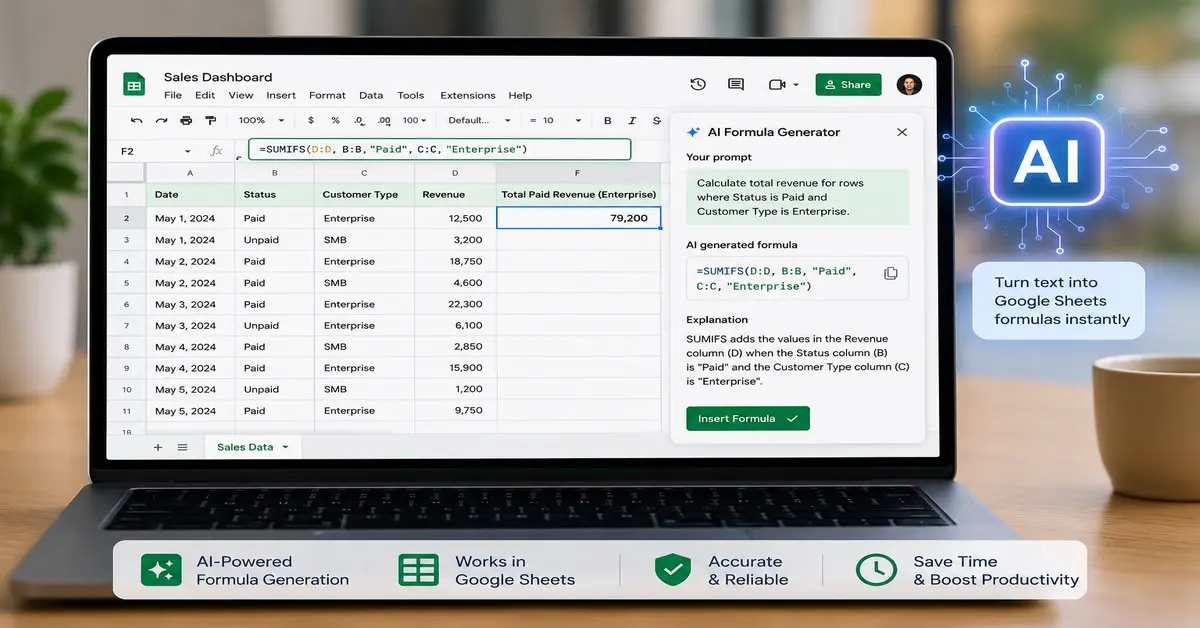
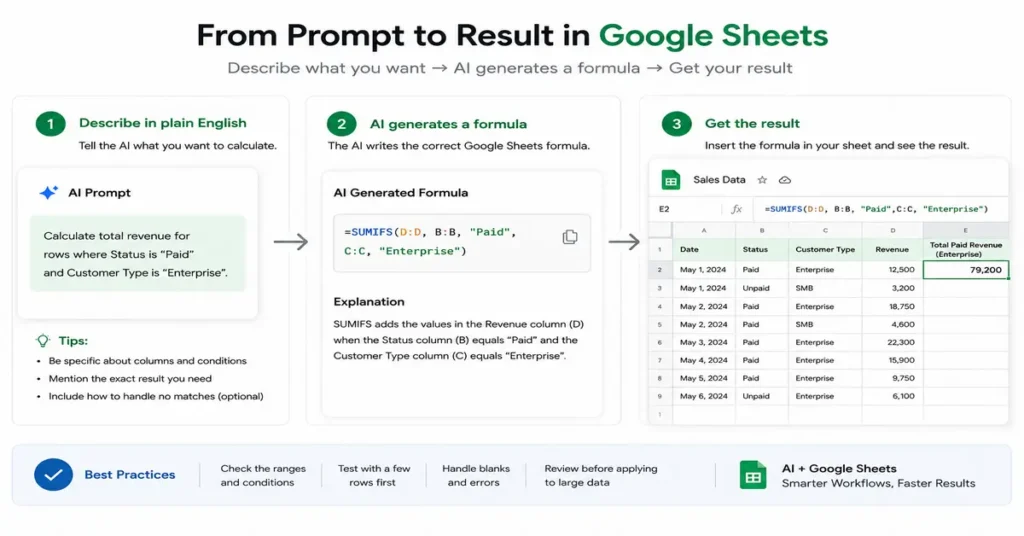
For example, instead of remembering how SUMIFS works, you could ask:
“Add the revenue in column D when the status in column B is Paid and the customer type in column C is Enterprise.”
A suitable result would be:
=SUMIFS(D:D,B:B,"Paid",C:C,"Enterprise")The useful part isn’t simply generating the formula. The AI needs to understand the relationship between your columns, conditions, ranges, and desired result.
That distinction matters because a formula can be syntactically valid and still give you the wrong business result.
The Best AI Formula Generators for Google Sheets
There is no single tool that is best for every spreadsheet user.
For someone already using an eligible Google Workspace or Google AI plan, Gemini should be the first option to consider because it is built into Google Sheets. Google says Gemini can generate formulas from prompts and can also help fix formula errors.
Dedicated products become more interesting when you want specialized formula editing, explanation, repair, testing, or automation.
| Tool | Best for | Main strength | Free option |
|---|---|---|---|
| Gemini in Google Sheets | Existing Google users | Native Sheets integration | Depends on eligible plan |
| Formula Bot | Quick formula generation | Simple natural-language generator | Yes, free to try |
| Formula Foundry | Complex formula work | Generate, explain, fix and organize formulas | Yes |
| SheetSteps | Context-aware formulas | Uses selected spreadsheet structure | Check current plan |
| GPT for Sheets | Broader spreadsheet AI | Formulas, cleanup, analysis and bulk tasks | Current plan varies |
| AI for Sheets | AI inside cells | Prompt-based spreadsheet workflows | Current plan varies |
The important point is that these products are not identical categories. Some are formula generators; others are broader AI spreadsheet assistants.
1. Gemini in Google Sheets – Best First Choice for Many Users
If Gemini is already available in your Google Sheets account, try it before installing another formula generator.
Google’s official documentation says Gemini in Sheets can generate formulas from natural-language prompts. You can describe the calculation you want and insert the generated formula into your spreadsheet. Google also provides a Fix option for formula errors.
For example, Google gives prompts such as:
“Create a formula that divides goals by games.”
You can also refer to cells or ranges in your prompt.
Why Gemini makes sense
You don’t have to:
- Leave your spreadsheet.
- Open another website.
- Copy your column structure.
- Copy the generated formula.
- Paste it back.
The AI is already part of the Sheets workflow.
Gemini can also do much more than formulas, including data analysis, charts, tables, formatting and other spreadsheet tasks.
The limitation
Gemini isn’t automatically available to every Google Sheets user. Google says the feature requires an eligible Google Workspace or Google AI plan.
Best for: People who already have Gemini access and don’t want another spreadsheet add-on.
Read More: Deduplicate Google Sheets With AI
2. Formula Bot – Best for a Simple Formula Generator
Formula Bot is much more focused on the actual formula-generation problem.
Its Google Sheets generator lets you describe a formula in plain English and generates a Sheets-specific formula. It also offers formula explanation and says the generator is free to try without signup.
That makes it useful for a simple situation:
“I know what I want the spreadsheet to calculate. I just don’t know the formula.”
Example
Suppose:
- Column A = Product
- Column B = Status
- Column C = Revenue
You could ask:
“Calculate total revenue for rows where Status is Completed.”
The generated formula could be:
=SUMIF(B:B,"Completed",C:C)You should still verify that the columns and condition match your actual spreadsheet.
What makes it useful
Formula Bot specifically emphasizes Google Sheets functions rather than treating Sheets as generic Excel.
Best for: Quick, one-off formula generation.
3. Formula Foundry – Best for Complex Formula Work
Formula Foundry takes the formula-generator concept further.
Its Google Workspace Marketplace listing says it can generate, explain and fix formulas in plain language. It also provides a multi-line formula editor, reusable variables and snippets. The listing was updated on August 11, 2026.
That matters when your formula becomes too long to comfortably manage in the normal Sheets formula bar.
For example, a complicated formula might contain:
=IF(AND(...),XLOOKUP(...),IFERROR(...))Reading and debugging that on one line isn’t pleasant.
Formula Foundry’s editor is designed specifically to make this type of formula work easier.
Another useful feature
The product supports formula building around functions including:
IFQUERYVLOOKUPXLOOKUP
according to its Marketplace listing.
Best for: Users who regularly work with complicated formulas and want more than a prompt box.
4. SheetSteps – Best for Working With Spreadsheet Context
One of the biggest weaknesses of generic AI formula generation is context.
If you tell an AI:
“Create a formula that calculates paid revenue.”
it doesn’t necessarily know:
- Which column contains revenue
- Which column contains status
- Where your data starts
- Whether blank rows exist
- Which sheet contains the data
SheetSteps takes a context-aware approach.
Its current product documentation says you can select relevant headers and sample rows, describe the desired result, and have the tool build a formula based on the actual structure of your sheet. It can also explain, repair and test formulas before applying them.
That’s a meaningful difference.
Its workflow
Select data → describe result → generate → test → review → apply
The product specifically shows examples involving:
- Conditional totals
- Lookup repair
ARRAYFORMULA#N/A#REF!- Parse errors
- Circular references
and provides a preview before filling a larger range.
Best for: Users who want the AI to understand the structure of their actual spreadsheet instead of working from a disconnected prompt.
5. GPT for Sheets – Best for Broader Spreadsheet Automation
GPT for Sheets isn’t limited to formula generation.
Its current Google Workspace Marketplace listing says it can automate:
- Formulas
- Cleanup
- Pivots
- Charts
- Translation
- Enrichment
- Scoring
- Bulk content generation
It also supports multiple AI models, including ChatGPT and Claude. The listing was updated August 27, 2026.
That makes it a different proposition.
If your requirement is:
“Write a formula.”
you probably don’t need a large spreadsheet automation platform.
But if your requirement is:
“Clean 5,000 rows, categorize them, generate formulas, translate text and analyze the results.”
then a broader AI spreadsheet assistant becomes much more relevant.
Best for: Analysts, operations teams and businesses doing repetitive spreadsheet work.
Read More: How to Analyze Google Sheets Data With AI
6. AI for Sheets – Best for AI Tasks Inside Cells
AI for Sheets takes another approach: putting AI-powered functions directly into the spreadsheet workflow.
Its Marketplace listing describes natural-language AI prompts inside Google Sheets for tasks such as content generation, data analysis and other spreadsheet automation.
This is useful if your spreadsheet contains a lot of text-based work rather than only numerical formulas.
For example:
“Categorize these customer comments.”
or:
“Summarize this product feedback.”
That’s different from simply asking:
“Write me a
SUMIFSformula.”
Best for: Users who want broader AI functionality inside spreadsheet cells.
Do You Actually Need an AI Formula Generator?
This is the question many comparison articles should ask first.
If you only need one simple formula, installing a new AI add-on may be unnecessary.
Google Sheets already supports formulas natively, and Google provides function documentation and syntax help.
If Gemini is available in your account, you may already have AI-assisted formula generation without adding another service.
So the decision is roughly:
You need one simple formula
Try Gemini or a free formula generator.
You regularly write complicated formulas
Consider a dedicated formula tool such as Formula Foundry.
Your formulas depend heavily on the sheet structure
A context-aware option such as SheetSteps may be more useful.
You need bulk spreadsheet automation
Look at broader tools such as GPT for Sheets.
That’s a much more useful way to choose a product than simply asking:
“Which one has the most features?”
How to Write a Better Prompt for an AI Formula Generator
The quality of your formula depends heavily on the quality of your instructions.
Bad prompt
Create a sales formula.
The AI has almost no useful context.
Better prompt
Create a Google Sheets formula that adds revenue in column D when column B says Paid.
Better, but still incomplete.
Good prompt
In Google Sheets, column B contains payment status, column C contains customer type, and column D contains revenue. Create a formula that returns total revenue where status is Paid and customer type is Enterprise. Return 0 if there are no matches.
Now the AI understands:
- The relevant columns
- The conditions
- The desired calculation
- The expected fallback
That gives it a much better chance of generating the correct formula.
5 Things to Tell AI Before Generating a Complex Formula
For complicated spreadsheet work, include these details.
1. Source columns
Tell the AI what each relevant column represents.
2. Desired result
Don’t just say “calculate sales.”
Say exactly what the result should mean.
3. Conditions
Explain every condition.
4. Error behavior
Tell it what should happen if there is no match or the input is blank.
5. Output location
If relevant, tell the AI where the formula will be placed.
For example:
“Put the formula in E2 and make it work for the entire column without manually dragging it.”
That is much more useful than:
“Make a formula.”
Can AI Generate Complex Google Sheets Formulas?
Yes.
But complexity and correctness are two different things.
AI can generate formulas involving functions such as:
QUERYFILTERARRAYFORMULAXLOOKUPVLOOKUPSUMIFSCOUNTIFSIMPORTRANGE
The problem isn’t necessarily whether AI can write the syntax.
The problem is whether the formula matches your actual data and business rule.
For example, this formula may be perfectly valid:
=SUMIFS(D:D,B:B,"Paid")But if your spreadsheet uses column E for revenue, the formula is wrong for your spreadsheet.
That’s why context is more important than formula complexity.
Read More: AI Function in Google Sheets
How to Check an AI-Generated Formula
This is the part you should not skip.
Step 1: Check the referenced ranges
Make sure the formula points to the correct columns and sheets.
Step 2: Check the conditions
Look carefully at:
>
>=
<
<=
=
<>
A single operator can change the result.
Step 3: Test known results
Use a few rows where you already know the answer.
If the AI formula says the total is $12,500 but you know it should be $11,800, stop.
Don’t assume the AI is right.
Step 4: Test blank values
Ask what happens when a required cell is empty.
Step 5: Test duplicates
Especially important for lookup formulas.
A formula that works with unique IDs may behave differently when duplicate IDs exist.
Step 6: Test errors
Check what happens with:
#N/A#REF!#VALUE!#DIV/0!- Invalid dates
- Text stored as numbers
Step 7: Test a real edge case
Don’t only test the “happy path.”
Put the formula against the kind of messy data that actually exists in your spreadsheet.
Why AI Formula Generators Sometimes Give Wrong Answers
There are several reasons.
Your prompt was incomplete
The AI had to guess.
Your column structure wasn’t provided
The formula may reference the wrong ranges.
Your business rule wasn’t precise
“Find active customers” can mean different things.
The data contains unexpected values
Text, blanks, duplicates and formatting issues can change the result.
The formula is technically valid but logically wrong
This is the most dangerous situation.
A syntax error is obvious.
A formula that produces a plausible but incorrect number is much harder to notice.
That’s why generated formulas should be treated as suggestions until verified.
Gemini vs AI Formula Generators: Which Is Better?
There isn’t one universal answer.
| If your situation is… | Start with… |
|---|---|
| You already have Gemini in Sheets | Gemini |
| You need one quick formula | Free formula generator |
| You need formula explanations | Formula Bot / Formula Foundry / similar tools |
| You need formula debugging | Formula Foundry / SheetSteps |
| The formula depends on actual sheet context | SheetSteps |
| You need bulk spreadsheet AI | GPT for Sheets or another broader assistant |
| You don’t want another add-on | Gemini or general AI |
Google’s native option has a major advantage: it is already part of the spreadsheet environment.
Third-party tools have a different advantage: they can specialize more heavily in formula editing, debugging, reuse or automation.
Is a Free AI Formula Generator Enough?
For many simple tasks, yes.
You shouldn’t pay $10, $20 or more per month just to generate a SUM, COUNTIF or basic XLOOKUP formula once in a while.
A free tool is often enough when you:
- Need occasional formulas
- Don’t need automation
- Don’t work with sensitive data
- Don’t need team features
- Don’t need a formula library
Paid tools become more reasonable when you’re doing spreadsheet work repeatedly and need workflow improvements rather than one-off answers.
What About Privacy?
This deserves more attention than it usually gets.
An AI formula tool may require access to your spreadsheet, depending on how it works.
Before installing any third-party Google Sheets add-on, check its requested permissions and privacy documentation.
For example, the Google Workspace Marketplace listing for Formula Foundry states that the add-on requests access to the Google account and spreadsheet permissions required by the product.
That doesn’t automatically mean a product is unsafe.
It means you should understand what you’re granting access to.
If the spreadsheet contains:
- Customer information
- Payroll data
- Financial records
- Private business information
- Confidential contracts
- Internal company data
don’t install an AI add-on without reviewing its current data-handling practices.
Read More: Google Sheets AI Data Cleaning
A Better Way to Use AI Formula Generators
The safest workflow is:
Describe → Generate → Inspect → Test → Apply
Not:
Describe → Copy → Trust
For a small spreadsheet:
- Explain the desired result.
- Generate the formula.
- Read the formula.
- Test it against known data.
- Apply it.
For a large or business-critical spreadsheet:
- Work on a copy.
- Test representative rows.
- Test edge cases.
- Check the resulting values.
- Only then apply the formula to the full range.
Some dedicated tools now build testing or previewing directly into their workflow. SheetSteps, for example, describes generating a formula, testing it on a sample and reviewing the destination before filling a larger range.
Our Conclusion: Which AI Formula Generator Should You Use?
Best starting point: Gemini in Google Sheets
If you already have access, there’s little reason to install another tool before trying it.
Best for a quick formula: Formula Bot
It’s straightforward and focused on natural-language formula generation.
Best for complex formula editing: Formula Foundry
Its combination of AI generation, explanation, repair, reusable snippets and a multi-line editor makes it more interesting for advanced formula work.
Best for spreadsheet-aware formula workflows: SheetSteps
Its emphasis on selected cells, spreadsheet structure, testing and controlled application addresses one of the biggest weaknesses of disconnected AI chats.
Best for broader spreadsheet automation: GPT for Sheets
If formulas are only one part of what you need AI to do, its broader workflow capabilities are more relevant.
The Bottom Line On AI Formula Generator for Google Sheets
An AI formula generator is useful when you know the result you want but don’t want to spend time remembering Google Sheets syntax.
But don’t choose a tool simply because it claims to generate “any formula.”
The more important questions are:
- Does it understand your spreadsheet context?
- Can it explain the formula?
- Can it help repair errors?
- Can you test the result safely?
- Does it fit the work you actually do?
- What access does it require?
- Do you even need a separate tool?
For many users, Gemini in Google Sheets is the logical first place to start. For more specialized formula work, dedicated tools such as Formula Bot, Formula Foundry and SheetSteps can make sense. For broader spreadsheet automation, a full AI spreadsheet assistant may be the better choice.
And regardless of which tool you use, remember the most important rule:
An AI-generated formula is a starting point—not proof that the calculation is correct.
Test it against data you understand before trusting it with important decisions.
FAQ On AI Formula Generator for Google Sheets
Is there a free AI formula generator for Google Sheets?
Yes. Formula Bot currently offers a free-to-try Google Sheets formula generator, and Formula Foundry also advertises a free option. Availability and limits can change, so check the current product terms before relying on a free tier.
Can Gemini create formulas in Google Sheets?
Yes. Google’s current documentation explicitly says Gemini in Sheets can generate formulas from natural-language prompts and can help fix formula errors.
Can ChatGPT create Google Sheets formulas?
Yes. A general AI chatbot can generate Google Sheets formulas if you provide enough information about your columns, conditions and desired result. However, a Sheets-integrated tool can be more convenient when you need direct spreadsheet context or repeated workflows.
What is the easiest way to create a Google Sheets formula with AI?
Describe the desired result in plain English and include the relevant columns, conditions and expected output. Then review and test the generated formula before applying it to your full dataset.
Are AI-generated Google Sheets formulas always correct?
No. AI can produce formulas that are syntactically valid but logically wrong for your spreadsheet. Always verify ranges, conditions, data types, blank values and edge cases.
Can AI fix a broken Google Sheets formula?
Some tools specifically support formula repair. Google says Gemini can analyze a formula error and offer a fix, while dedicated tools such as SheetSteps and Formula Foundry also advertise formula repair capabilities.
Should I give an AI tool access to my entire spreadsheet?
Not automatically. Review the permissions and privacy practices first, particularly when your spreadsheet contains confidential, financial or customer information.
If you want to explore Google’s built-in AI capabilities for spreadsheets, Google Workspace provides Gemini features that can help with formula generation, data analysis, and other spreadsheet tasks. Learn more about Gemini in Google Sheets
4 thoughts on “AI Formula Generator for Google Sheets: Which Tool Should You Use in 2026?”