Google Sheets AI Data Cleaning: 7 Ways to Clean Messy Data (2026)
Google Sheets AI Data Cleaning: Yes, AI can help clean messy Google Sheets data by standardizing inconsistent text, finding duplicates, categorizing values, fixing formatting problems, and flagging questionable records. But you should not let AI blindly change your entire spreadsheet. The safest approach is to identify the problem, clean a small sample first, review the results, and then apply the workflow to the rest of the data.
Google Sheets already includes built-in cleanup features for some common problems, while AI becomes more useful when the data is inconsistent, unstructured, or difficult to clean with simple formulas and rules.
What Is AI Data Cleaning in Google Sheets?
AI data cleaning means using artificial intelligence to identify and improve problems in spreadsheet data.
A messy spreadsheet might contain:
| Customer Name | Phone | Company | Status |
|---|---|---|---|
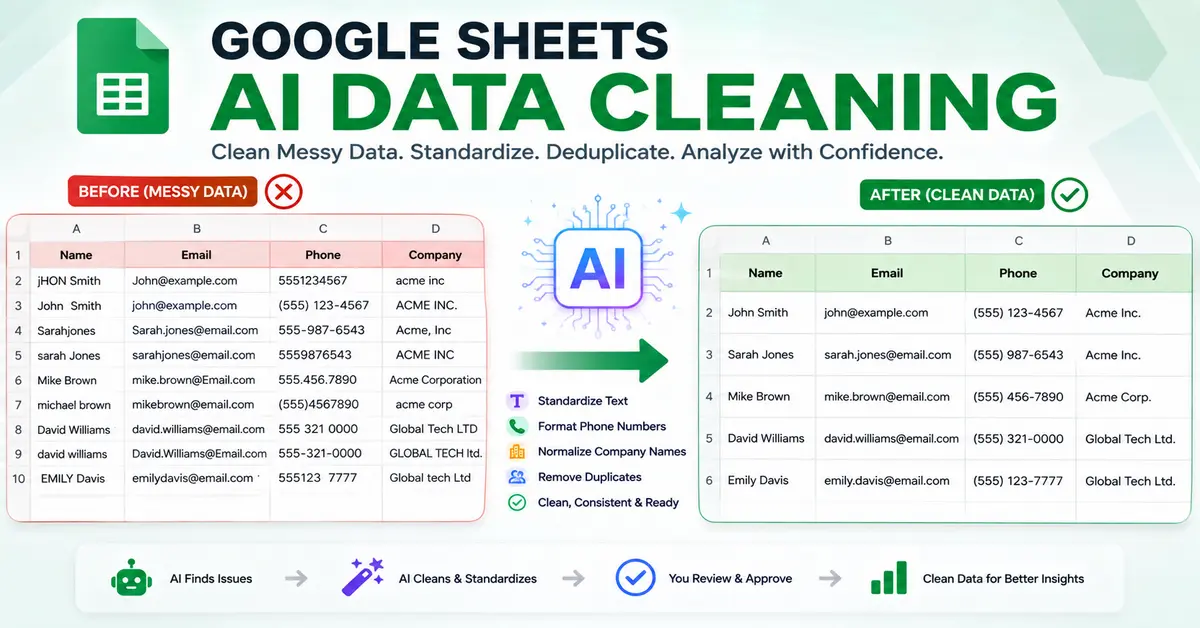
| jHON smith | 555-123-4567 | acme inc | active |
| John Smith | (555) 123-4567 | ACME INC. | Active |
| Sarah jones | 5551234568 | Acme, Inc | ACTIVE |
| Michael Brown | 555-123-4569 | Acme Corp | active |
A human can recognize some of these inconsistencies immediately.
But when you have 10,000 or 100,000 rows, manually fixing them becomes a different problem.
AI can help identify patterns such as:
jHON smith→John SmithACME INC.→Acme Inc.5551234567→(555) 123-4567active→Active- Similar company names → possible match
- Different spellings → possible duplicate
- Unstructured text → standardized category
Current AI spreadsheet tools specifically advertise these kinds of cleanup tasks, including deduplication, normalization, standardization and messy-text correction.
Read More: AI Formula Generator for Google Sheets
Do You Actually Need AI to Clean Google Sheets?
Not always.
This is important.
If the problem is simply extra spaces, inconsistent capitalization, or exact duplicate rows, normal Google Sheets tools may be faster and safer.
For example, Google Sheets has built-in data-cleanup features for common problems, including duplicate removal and cleanup suggestions.
AI becomes more useful when the spreadsheet contains meaning-based inconsistencies.
For example:
IBM
IBM Corp.
IBM Corporation
International Business Machines
A simple exact-match rule sees four different values.
A more intelligent matching process may recognize that they could represent the same organization.
That is where AI or fuzzy matching becomes useful.
7 Ways to Clean Google Sheets With AI
1. Standardize Messy Text
One of the easiest AI data-cleaning tasks is standardizing inconsistent text.
Suppose a customer-name column contains:
JOHN SMITH
john smith
John smith
jHON sMITH
John  Smith
A normal spreadsheet formula can handle some formatting problems.
But AI can be useful when you want to apply a more semantic rule:
“Standardize each person’s name using normal capitalization and remove obvious formatting inconsistencies.”
AI data-cleaning tools currently advertise this kind of normalization directly inside Google Sheets.
Why this matters
Inconsistent text can create problems when you later:
- Group customers
- Build reports
- Create pivot tables
- Filter data
- Match records
- Count categories
For example, Google Sheets may treat:
California
california
CALIFORNIA
as different text values even though they represent the same state.
2. Standardize Categories
This is another strong AI use case.
Imagine a survey column contains:
Very satisfied
very satisfied
Very Satisfied
Satisfied
happy
good
Excellent
excellent
You could ask AI to map them into a controlled set:
Positive
Neutral
Negative
For example:
=AI("Classify this response as Positive, Neutral, or Negative. Return only one category.", A2)
Google’s AI function supports categorization tasks, making this type of text normalization possible directly within Sheets for eligible users.
Why controlled categories matter
If you later create a chart, you don’t want:
- Positive
- positive
- POSITIVE
- Very positive
- Excellent
- Great
to appear as six unrelated categories if your analysis only needs three.
AI can help map messy responses into a consistent classification system.
3. Clean Names, Addresses and Phone Numbers
Real-world data rarely arrives in a perfectly standardized format.
Phone numbers are a good example:
5551234567
555-123-4567
(555) 123-4567
+1 555 123 4567
These may represent the same phone number.
Similarly, addresses can vary:
123 Main Street
123 Main St.
123 MAIN ST
123 Main St
AI can help identify and normalize these patterns.
AI data-cleaning platforms currently describe standardizing names, phone numbers, addresses and other fields as common spreadsheet-cleaning workflows.
But there is a catch
Don’t let AI invent missing information.
If a phone number is:
555-123-____
AI should not guess the missing digits.
The goal is:
Normalize existing information
not:
Create information that isn’t present.
Read More: Deduplicate Google Sheets With AI
4. Find and Handle Duplicate Records
This is closely related to our previous article.
Duplicate data can appear in several forms:
Exact duplicates
John Smith | [email protected]
John Smith | [email protected]
Formatting duplicates
John Smith | [email protected]
john smith | [email protected]
Near duplicates
John Smith | [email protected]
Jon Smith | [email protected]
Semantic duplicates
IBM
IBM Corporation
International Business Machines
AI and fuzzy-matching tools can help identify these more complicated cases. Current Google Sheets tools advertise fuzzy matching, deduplication and similarity-based workflows.
But remember:
A likely duplicate is not automatically a confirmed duplicate.
Keep a review step before deleting important records.
5. Extract Structured Information From Messy Text
Sometimes your data isn’t technically “wrong.”
It’s just badly structured.
Imagine a column containing:
John Smith - Acme Inc - [email protected]
Another row:
Sarah Jones | BrightTech | [email protected]
Another:
Michael Brown, Example Corp, [email protected]
You might want three separate columns:
| Name | Company | |
|---|---|---|
| John Smith | Acme Inc | [email protected] |
| Sarah Jones | BrightTech | [email protected] |
| Michael Brown | Example Corp | [email protected] |
AI can help extract specific information from unstructured text.
For example:
=AI("Extract only the company name from this text.", A2)
Or:
=AI("Extract the email address from this text. Return only the email.", A2)
This is particularly useful when data comes from:
- Emails
- Forms
- Customer notes
- CRM exports
- Support tickets
- Survey responses
- Manually entered records
6. Detect Missing or Suspicious Data
AI can also help flag records that deserve attention.
For example, you might ask:
“Identify rows where the customer information appears incomplete.”
A spreadsheet could contain:
| Name | Phone | |
|---|---|---|
| John Smith | [email protected] | 555-1234 |
| Sarah Jones | 555-5678 | |
| Michael Brown | [email protected] |
Instead of automatically filling the missing information, AI can flag the rows.
That is a safer approach.
Use three categories
Complete
Incomplete
Review
This gives you a quality-control layer without allowing AI to invent information.
7. Fix Inconsistent Formatting and Text Rules
Formatting inconsistencies can appear in:
- Dates
- Currency
- Units
- Product names
- Job titles
- Country names
- State names
- Status fields
- Categories
For example:
Jan 5, 2026
01/05/2026
2026-01-05
January 5 2026
Before analysis, you may want all records represented consistently.
Some AI tools can help identify and normalize these inconsistencies, while Google Sheets’ own cleanup features can handle simpler formatting and whitespace problems.
For deterministic formatting, however, a normal Sheets function or formatting rule is often preferable.
The Safest AI Data-Cleaning Workflow
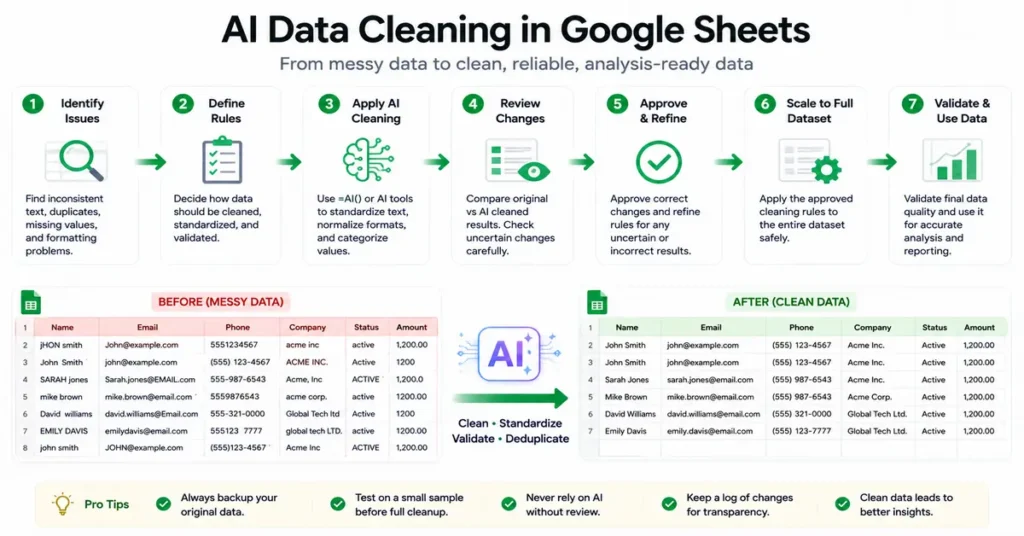
Don’t do this:
Upload spreadsheet → “Clean everything” → Accept all changes
Use:
Backup → Inspect → Define → Sample → Review → Scale → Verify
Here’s what that looks like.
Read More: How to Analyze Google Sheets Data With AI
Step 1: Make a Backup
Create a copy of the original spreadsheet or original data tab.
Call it something like:
Raw Data — Do Not Edit
Then create:
Cleaned Data
Work there.
This gives you an original reference if something goes wrong.
Step 2: Identify the Actual Problems
Don’t tell AI:
“Clean this spreadsheet.”
That’s too vague.
First identify the problems.
For example:
“The customer-name column has inconsistent capitalization, the phone column uses multiple formats, and the company column contains possible duplicate names.”
Now the AI has a specific job.
Step 3: Define Your Cleaning Rules
This is critical.
For example:
Standardize customer names using normal title capitalization.
Format all US phone numbers as
(XXX) XXX-XXXXwhen enough digits are available.
Do not modify missing phone numbers.
Standardize company suffixes where the match is obvious.
Flag uncertain company matches instead of changing them.
These rules make the workflow safer.
Step 4: Test 10–20 Rows
Never start with 50,000 rows.
Take a small sample.
For example:
10–20 rows
Run the AI cleanup.
Then inspect:
- What changed?
- What didn’t change?
- Did AI misunderstand anything?
- Did it invent anything?
- Did it incorrectly merge records?
- Did it create new inconsistencies?
Current AI spreadsheet-cleaning guidance from DocGPT specifically recommends testing a small sample before filling the workflow across the full dataset.
Step 5: Create a QA Column
Don’t overwrite the original value immediately.
Instead use columns such as:
| Original | AI Cleaned | QA Status |
|---|---|---|
| jHON smith | John Smith | Review |
| JOHN JONES | John Jones | Approved |
| IBM Corp. | IBM | Review |
This makes your cleanup process auditable.
You can then compare the original and AI-generated values before replacing anything.
Step 6: Scale the Cleanup
Once your sample looks correct, apply the same workflow to the larger dataset.
For large-scale spreadsheet cleanup, current AI spreadsheet tools advertise bulk processing across thousands of rows. GPT for Work, for example, currently says its agent can apply cleanup instructions across rows and supports high-volume spreadsheet processing.
But don’t assume the vendor’s advertised throughput means every dataset will behave perfectly.
The complexity of the cleanup matters.
Step 7: Verify the Final Dataset
After cleaning, check:
Row count
Did you accidentally lose rows?
Important totals
Did total sales, quantity or revenue change unexpectedly?
Unique records
Did legitimate customers disappear?
Categories
Are category values now consistent?
Missing values
Did AI accidentally convert missing values into guesses?
Duplicates
Are obvious duplicates actually resolved?
Random sample
Pick 20–50 random rows and manually inspect them.
Google Sheets Built-In Cleanup vs AI
You shouldn’t automatically choose AI.
Here’s the practical difference.
| Problem | Best starting point |
|---|---|
| Extra spaces | Google Sheets cleanup |
| Exact duplicates | Google Sheets Remove duplicates |
| Simple capitalization | Formula / Sheets tools |
| Simple date formatting | Google Sheets |
| Messy categories | AI can help |
| Unstructured text | AI |
| Near-duplicate names | AI/fuzzy matching |
| Extracting information from text | AI |
| Large-scale semantic cleanup | AI tool |
| Business-critical records | AI + human review |
Google’s built-in cleanup features are useful for straightforward data-quality problems, while AI tools become more valuable when the cleanup requires interpretation rather than a simple rule.
Can Gemini Clean Google Sheets Data?
Google’s AI capabilities in Sheets can assist with data analysis, generation and other spreadsheet tasks, but you shouldn’t assume that every cleanup operation requires Gemini.
For straightforward cleanup, native Sheets tools may be enough.
For semantic tasks such as:
“Classify these 5,000 customer comments.”
or:
“Normalize these company names and flag uncertain matches.”
an AI workflow is more appropriate.
Google’s current AI-function documentation also supports categorization, summarization and other text-oriented tasks directly within cells for eligible users.
AI Tools for Cleaning Google Sheets Data
There are several different types of tools available.
GPT for Work
GPT for Work currently positions its Google Sheets/Excel AI around bulk data cleaning, normalization, deduplication and messy-text correction. It also describes reviewing a sample before scaling the cleanup.
Best suited for: Large-scale AI spreadsheet cleanup and repetitive transformations.
Read More: AI Function in Google Sheets
Querri
Querri takes a broader platform approach. Its current documentation describes cleaning messy spreadsheet data, analyzing multiple sources and exporting structured results back to Google Drive.
Best suited for: Teams that need data cleaning plus broader analysis/reporting workflows.
Nanosuite
Nanosuite is listed in the Google Workspace Marketplace as a Google Sheets add-on for cleaning, validating and deduplicating spreadsheet data.
Best suited for: Users who want spreadsheet cleanup tools directly inside Sheets.
Sheet Optimizer
Sheet Optimizer is a Google Workspace Marketplace add-on that currently advertises data cleaning features such as trimming spaces, changing text case, removing duplicates and checking for broken cells.
Best suited for: Basic cleanup and formatting rather than complex semantic AI analysis.
Don’t Choose an AI Tool Just Because It Says “AI”
This is a trap.
A tool that can:
“Remove extra spaces”
is not necessarily more useful than Google Sheets’ native cleanup tools.
Likewise, an expensive AI platform isn’t automatically better for a simple 500-row spreadsheet.
Ask:
What problem does it solve?
Does it work inside Google Sheets?
Can I preview changes?
Can I undo or restore the original?
Does it support large datasets?
What data does it access?
What does it cost?
Does it use an external AI provider?
These questions are more useful than simply asking:
“Is this an AI tool?”
A Good AI Prompt for Google Sheets Data Cleaning
Instead of:
Clean this spreadsheet.
Use something like:
“Clean the customer data in this sheet. Standardize capitalization in the name column, normalize phone numbers to US format when the number is complete, standardize obvious company-name formatting differences, and flag possible duplicates. Do not delete rows, do not invent missing information, and do not modify values when the correct result is uncertain. Return the cleaned value and a review flag.”
This prompt contains:
- The task
- The columns
- The formatting rules
- The safety rules
- The output requirement
That’s much safer.
A Better Prompt for Messy Customer Data
Try:
“Review this customer dataset for data-quality problems. Identify inconsistent names, duplicate or near-duplicate records, inconsistent phone formats, missing fields, and inconsistent company names. Do not delete or overwrite the original data. Create a proposed cleaned value and a reason for every change. Mark uncertain records as Review rather than guessing.”
This is much closer to how a professional data-cleaning workflow should operate.
What AI Should Never Automatically Do
Be especially careful with:
Missing values
Don’t let AI invent them.
Financial values
Don’t let AI silently alter amounts.
Customer IDs
Don’t change identifiers without a deterministic rule.
Transactions
Don’t merge rows just because the customer names match.
Legal records
Don’t normalize away meaningful distinctions.
Historical data
Don’t assume the newest-looking value is always correct.
Fuzzy matches
Don’t delete them automatically.
The principle is simple:
AI can propose a correction. Your data rules decide whether the correction is valid.
How to Know If Your Data Is Actually Clean
A spreadsheet isn’t “clean” simply because it looks nicer.
A good cleaned dataset should have:
- Consistent formats
- Clear headers
- Controlled categories
- Minimal duplicate records
- Correct data types
- Explicit missing values
- Valid identifiers
- Traceable changes
- No unexplained data loss
The final test is whether the cleaned data is more reliable for the task you want to perform next.
If you’re preparing the data for analysis, the cleanup should improve the accuracy of the analysis.
Why Data Cleaning Matters Before AI Analysis
This connects directly to our previous article.
If your spreadsheet contains:
California
california
CA
Calif.
AI might identify a pattern.
But your reporting system may still treat those values as different categories.
Likewise, duplicate rows can inflate:
- Revenue
- Customer counts
- Orders
- Inventory
- Survey responses
So the correct order is often:
Clean → Validate → Analyze
not:
Analyze → Discover that the data was messy
This is why data cleaning should be treated as part of the analytical workflow rather than a cosmetic spreadsheet task.
AI Data Cleaning vs Traditional Formulas
Traditional formulas are excellent when the rule is deterministic.
For example:
=TRIM(A2)
can remove unnecessary spaces.
Or:
=UPPER(A2)
can standardize capitalization.
Or:
=LOWER(A2)
can normalize text case.
These are predictable.
AI is more useful when the rule requires interpretation.
For example:
“Map these customer responses into five meaningful categories.”
That’s much harder to express with a simple formula.
The best approach is often hybrid
Formula for deterministic cleanup
AI for semantic cleanup
Human review for ambiguous cases
That’s more reliable than trying to make AI do everything.
A Simple 3-Level Data Cleaning Strategy
Level 1 — Basic
Use Google Sheets.
Best for:
- Spaces
- Case
- Exact duplicates
- Simple formatting
Level 2 — AI-assisted
Use AI.
Best for:
- Categories
- Text extraction
- Summarization
- Semantic normalization
- Fuzzy matching
Level 3 — Professional workflow
Use:
Rules + AI + validation + human review
Best for:
- Large customer databases
- CRM imports
- Business reporting
- Repeated data pipelines
- High-value datasets
The more important the data, the less you should rely on an unreviewed AI cleanup.
Frequently Asked Questions
Can AI clean Google Sheets automatically?
Yes. AI tools can help standardize text, categorize data, identify duplicates, extract information and flag questionable records. Some Google Sheets tools also support bulk cleanup workflows.
What is the best AI tool for cleaning Google Sheets?
There isn’t one universal best tool. For large-scale AI cleanup, GPT for Work is one option. For broader cleaning and analysis across data sources, Querri is another. For simpler in-Sheets cleanup, native Google Sheets features or specialized add-ons may be sufficient.
Can Gemini clean messy data in Google Sheets?
Gemini-powered features can assist with spreadsheet data tasks, while Google’s AI function can perform tasks such as categorization and summarization for eligible users. For simple cleanup problems, native Sheets cleanup tools may be enough.
Can AI fix inconsistent names?
Yes. AI can help normalize names with inconsistent capitalization, spacing and some formatting differences. But uncertain corrections should be flagged for review rather than automatically accepted.
Can AI remove duplicate rows?
Yes. AI-assisted tools can identify exact and near-duplicate records. However, fuzzy matches should generally be reviewed before deletion because similar records may represent legitimate separate entries.
Should I let AI overwrite my original data?
No. Keep the original dataset and create a cleaned version or separate output columns. This makes it easier to review and undo mistakes.
Can AI fill missing information?
It can sometimes generate or infer values, but that doesn’t mean the values are correct. For data cleaning, it is usually safer to flag missing information rather than let AI invent it.
How many rows can AI clean at once?
That depends on the tool, model, account and workflow. Some products advertise high-volume processing, but performance and accuracy can vary with the complexity of the data. Test a small sample before processing the entire dataset.
Is AI data cleaning better than Google Sheets formulas?
Not universally. Formulas are usually better for deterministic rules such as trimming spaces or changing text case. AI is more useful for tasks involving language, classification and semantic interpretation.
Is AI data cleaning safe?
It can be, if used carefully. Keep backups, avoid automatic deletion of uncertain records, review permissions and privacy policies, and verify important changes before relying on the cleaned dataset.
Conclusion
AI is most useful for Google Sheets data cleaning when the problem goes beyond simple formatting.
If you only need to remove duplicate rows or trim spaces, use Google Sheets’ built-in tools or formulas first.
If your spreadsheet contains inconsistent names, messy categories, unstructured text, near-duplicate records or thousands of rows that need repetitive classification, AI can save significant manual work.
But the safest workflow is not:
AI → Clean everything → Done
It is:
Backup → Define rules → Test a sample → Review → Scale → Validate
And for the best results, combine the strengths of each approach:
Google Sheets formulas for predictable rules.
AI for semantic and language-based cleanup.
Human review for uncertain decisions.
That’s how you turn a messy spreadsheet into data you can actually trust.
Google Sheets also includes built-in Smart Cleanup features that can help identify duplicates, extra spaces, inconsistent data, anomalies, and other common data-quality issues. Before using AI for more advanced cleanup, it’s worth checking these native tools first.