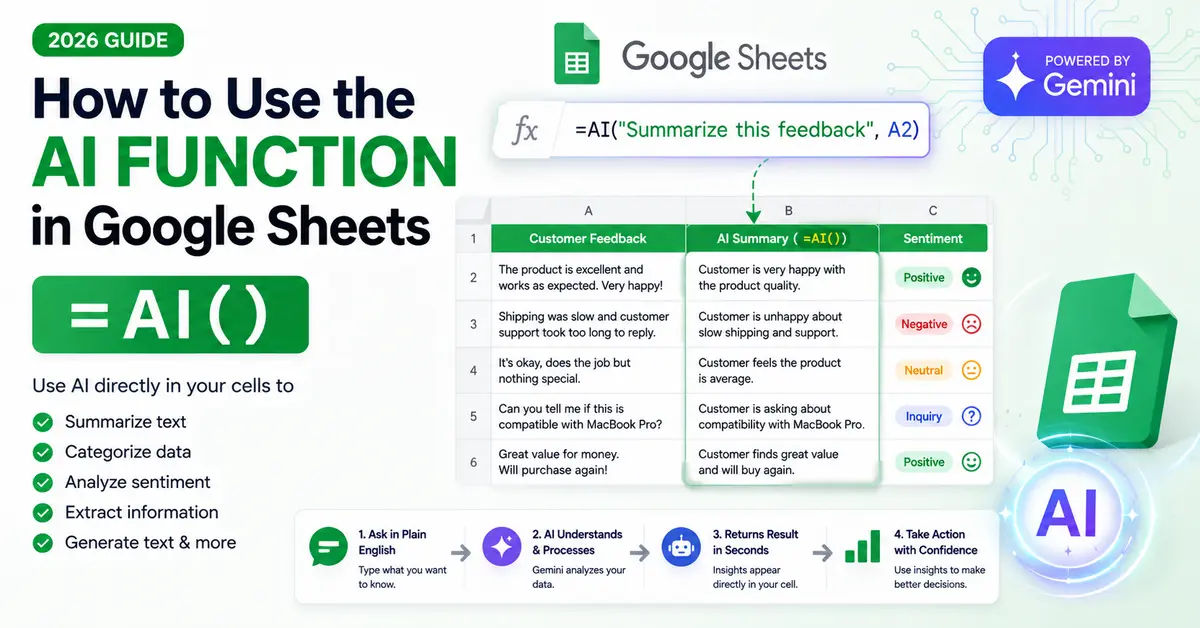
How to Use the AI Function in Google Sheets: =AI() Guide (2026)
AI Function in Google Sheets: Google Sheets’ =AI() function lets eligible users generate text, summarize information, categorize data, analyze sentiment, and retrieve current information from Google Search directly from spreadsheet cells. You can enter a natural-language instruction and optionally give the function a cell or range to use as context.
The important part is understanding what =AI() can actually do, how to write the prompt, when it is better than the Gemini side panel, and where its limitations can cause problems.
What Is the AI Function in Google Sheets?
The AI function is a Google Sheets function powered by Gemini.
Instead of writing a traditional spreadsheet formula such as:
=IF(B2>100,"High","Low")
you can give the AI a natural-language instruction.
For example:
=AI("Classify this review as Positive, Negative, or Neutral", A2)
The function uses the content you provide as context and generates an answer in the spreadsheet.
Google currently supports both:
=AI()
and:
=Gemini()
for this feature.
This makes the function particularly useful for tasks involving text and unstructured information, where traditional spreadsheet formulas are often awkward.
What Can =AI() Do in Google Sheets?
Google currently documents several core uses for the AI function:
- Generate text
- Summarize information
- Categorize information
- Analyze sentiment
- Access current information from Google Search
That means you can use it for tasks such as:
- Summarizing customer reviews
- Classifying feedback
- Extracting information from text
- Creating short descriptions
- Categorizing expenses
- Analyzing sentiment
- Generating marketing copy
- Answering certain questions about referenced data
- Getting up-to-date information in supported prompts
The function is therefore more than an AI-powered formula generator.
It is essentially a natural-language processing function inside your spreadsheet.
Read More: AI Formula Generator for Google Sheets
Who Can Use the AI Function in Google Sheets?
This is important because =AI() is not automatically available to every Google Sheets user.
Google says the feature requires an eligible Google Workspace or Google AI plan. Availability can also depend on administrator settings, language settings, and access to the relevant Google Workspace AI features.
Google’s current availability documentation includes plans such as:
- Google Workspace Business Standard
- Google Workspace Business Plus
- Enterprise Standard
- Enterprise Plus
- Eligible Google AI plans
- Certain education/add-on configurations
Availability can change, so check Google’s current plan information if you don’t see the feature in your account.
If =AI() doesn’t work
If Google Sheets says:
AI function not available
don’t assume your formula is wrong.
Google lists several possible reasons, including account eligibility, Workspace Experiments participation, administrator settings, or language settings.
How to Use the =AI() Function in Google Sheets
The basic syntax is:
=AI("prompt", [optional range])
Google also supports:
=Gemini("prompt", [optional range])
The prompt tells Gemini what you want it to do.
The optional range gives the AI the data it should use.
Simple example
If cell A2 contains:
The product is excellent but shipping was slow.
You could use:
=AI("Summarize this customer feedback in one sentence", A2)
The output might be something like:
Excellent product, but shipping was slow.
The exact wording can vary because AI-generated output is not guaranteed to be identical every time.
1. Use =AI() to Summarize Text
One of the simplest applications is summarization.
Suppose column A contains long customer reviews.
| A |
|---|
| Customer Review |
| “I really liked the product…” |
| “The quality was good but…” |
| “I expected faster delivery…” |
You can use:
=AI("Summarize this review in 15 words or fewer", A2)
Then apply the function to additional rows.
Better prompt
Instead of:
=AI("Summarize", A2)
use:
=AI("Summarize this customer review in one sentence using no more than 20 words", A2)
The second prompt gives the AI:
- The task
- The output format
- The length constraint
- The source data
That generally makes the result more predictable.
2. Use =AI() to Categorize Data
This is one of the most practical uses.
Imagine you have hundreds of customer support messages:
| Customer message |
|---|
| “I can’t log into my account.” |
| “How do I change my password?” |
| “My payment was declined.” |
| “The app keeps crashing.” |
You could categorize them as:
- Account
- Password
- Payment
- Technical issue
For example:
=AI("Classify this support message as Account, Password, Payment, or Technical. Return only the category.", A2)
Google’s own examples include categorizing information and classifying email content as positive, negative or neutral.
Why the output instruction matters
Don’t simply ask:
“Categorize this.”
You might receive:
“This appears to be related to a customer’s payment issue.”
That’s harder to use in a spreadsheet.
Instead:
“Return only one category: Account, Password, Payment, or Technical.”
Now the result is easier to filter, count and analyze.
3. Use =AI() for Sentiment Analysis
You can also use the AI function to classify customer feedback by sentiment.
For example:
=AI("Classify this review as Positive, Negative, or Neutral. Return only one label.", A2)
You could then have:
| Review | Sentiment |
|---|---|
| Great product and fast delivery | Positive |
| The product arrived damaged | Negative |
| It works as expected | Neutral |
Google specifically lists sentiment analysis as one of the supported AI-function use cases.
Want a score instead?
You could ask:
=AI("Rate this review from 1 to 5 for customer satisfaction. Return only the number.", A2)
But be careful with this approach.
A score generated by AI is an AI classification, not an objective measurement.
If you’re using the result for serious business analysis, validate your classification method first.
4. Use =AI() to Generate Text
You can also generate new text based on information in your spreadsheet.
For example, suppose column A contains product names:
| Product |
|---|
| Wireless Mouse |
| USB-C Hub |
| Laptop Stand |
You could ask:
=AI("Write a short product description in one sentence", A2)
This can be useful for:
- Product catalogs
- Internal descriptions
- Marketing drafts
- Short summaries
- Content classification
- Metadata preparation
Google documents text-generation use cases for the AI function.
Important
Generated text should still be reviewed before publication.
AI can produce:
- Incorrect specifications
- Unsupported claims
- Repetitive wording
- Generic descriptions
So don’t treat generated copy as automatically publish-ready.
5. Use =AI() to Extract Information From Text
Suppose you have customer messages containing different pieces of information.
For example:
“Please contact John Smith at [email protected] regarding the Acme account.”
You could ask:
=AI("Extract only the company name from this text", A2)
or:
=AI("Extract the person's name. Return only the name.", A2)
This can be useful when working with semi-structured text that would otherwise require complicated formulas or manual cleanup.
The important part is to define exactly what should be extracted.
Read More: Deduplicate Google Sheets With AI
6. Use =AI() to Get Current Information From Google Search
This is one of the more interesting capabilities.
Google’s current documentation says the AI function can access real-time information from Google Search for supported requests.
Google gives examples such as:
=AI("What is the current capital of Kazakhstan?", A2)
and other prompts that use information from the web.
But don’t misunderstand this
This does not mean:
“I can ask anything about the internet and the result is guaranteed to be correct.”
Current information can change.
For important information, verify the answer against an authoritative source.
This is especially important for:
- Prices
- Financial information
- Legal information
- Medical information
- Current policies
- Business statistics
- Product specifications
The Most Important Part: The Optional Range
The range argument is one of the most useful parts of the AI function.
The syntax is:
=AI("your prompt", A2)
or:
=AI("your prompt", A2:D2)
The range gives the AI relevant context.
Google specifically recommends providing relevant data through the optional range because the AI function does not automatically have access to your entire spreadsheet or other files in Google Drive.
That means this:
=AI("Summarize this feedback", A2)
is generally more useful than:
=AI("Summarize my spreadsheet")
because the first formula explicitly tells the AI which information it should process.
How to Write Better =AI() Prompts
The biggest mistake beginners make is using prompts that are too vague.
Weak
=AI("Analyze this", A2)
Better
=AI("Analyze the sentiment of this customer review", A2)
Better still
=AI("Classify this customer review as Positive, Negative, or Neutral. Return only one label.", A2)
The third prompt is much more useful for structured spreadsheet work.
A Simple Prompt Formula
For repeatable tasks, build your prompt around four things:
Action + Context + Rules + Output
Action
What should AI do?
Summarize
Context
What data should it use?
This customer review
Rules
What restrictions apply?
No more than 20 words
Output
What should the cell contain?
Return one sentence only
Combined:
=AI("Summarize this customer review in one sentence using no more than 20 words. Return only the summary.", A2)
This is much more reliable than:
=AI("Summarize", A2)
10 Useful =AI() Examples
Customer review summary
=AI("Summarize this review in one sentence", A2)
Sentiment
=AI("Classify this review as Positive, Negative, or Neutral. Return only one label.", A2)
Expense category
=AI("Classify this expense as Travel, Software, Marketing, Food, or Other. Return only one category.", A2)
Product description
=AI("Write a 20-word product description based only on this product information", A2)
Extract company name
=AI("Extract the company name from this text. Return only the company name.", A2)
Extract location
=AI("Extract the city mentioned in this text. Return only the city.", A2)
Customer intent
=AI("Classify this message as Sales, Support, Refund, Complaint, or Other. Return only one category.", A2)
Summarize multiple columns
=AI("Write a one-sentence summary using the information in these cells", A2:D2)
Identify themes
=AI("Identify the main theme in this customer feedback", A2)
Current information
=AI("What is the current capital of Kazakhstan?")
Google documents similar examples for text generation, classification, summarization and current information.
Can You Use Multiple Cells as Context?
Yes.
You can provide a range such as:
=AI("Summarize this customer record", A2:D2)
This can be useful when the information you need isn’t stored in one cell.
For example:
| Name | Product | Problem | Status |
|---|---|---|---|
| John | Laptop | Battery issue | Open |
You could ask:
=AI("Write a one-sentence summary of this support case", A2:D2)
The AI can use the referenced information as context.
Read More: How to Analyze Google Sheets Data With AI
What If the Data Is in Two Separate Ranges?
Google’s documentation explains that you can use concatenation when you need to reference non-contiguous data.
For example:
=AI("Summarize this customer and their feedback: "&B2&" "&D2)
This combines values into the prompt.
Important limitation
Google notes that if the data in referenced ranges changes, the AI output may not automatically prompt you to refresh in the way a normal spreadsheet formula recalculates. You may need to determine when to refresh the generated output.
That’s a major difference from ordinary deterministic formulas.
=AI() Is Not a Normal Spreadsheet Formula
This is an important distinction.
A traditional formula such as:
=SUM(B2:B100)
is deterministic.
Given the same data, you expect the same mathematical result.
AI-generated output is different.
For example:
=AI("Summarize this review", A2)
can produce natural-language output.
That means you should not treat AI-generated text exactly like a mathematical calculation.
For business-critical numerical analysis, use traditional spreadsheet formulas whenever they can perform the job reliably.
Use AI where language understanding or interpretation is the actual problem.
What =AI() Is Good At
The AI function is particularly useful for:
Unstructured text
Reviews, comments, descriptions and messages.
Classification
Turning messy text into consistent categories.
Summarization
Reducing long text into shorter descriptions.
Extraction
Pulling specific information from text.
Content generation
Creating drafts based on spreadsheet information.
Sentiment analysis
Identifying positive, negative or neutral feedback.
These are tasks where traditional formulas can become complicated or impractical.
What =AI() Is Not Good At
Don’t use AI when a normal formula is simpler and more reliable.
For example:
Total sales
Use:
=SUM(B2:B100)
Not:
=AI("Calculate the total sales", B2:B100)
Average
Use:
=AVERAGE(B2:B100)
Count
Use:
=COUNT(B2:B100)
Exact lookup
Use:
=XLOOKUP(...)
when a deterministic lookup is appropriate.
Mathematical calculations
Traditional spreadsheet formulas are generally preferable when the calculation is well-defined.
AI should solve the problems that require AI.
Don’t use it simply because it’s available.
=AI() vs Gemini Side Panel
This is one of the most important distinctions.
Google Sheets now has multiple Gemini-powered experiences.
The AI function operates from spreadsheet cells using a formula-like interface.
The Gemini side panel can work more broadly with spreadsheet tasks.
Google’s current documentation says the Gemini side panel can:
- Create tables
- Create formulas
- Generate data analysis
- Build charts
- Create and edit spreadsheets
- Apply formatting
- Create pivot tables
- Sort and filter data
- Find and replace
- Fill ranges
- Perform other spreadsheet actions
Use =AI() when:
You want an AI-generated result inside a cell or column.
Examples:
Categorize every review.
Summarize every customer comment.
Generate a description for each product.
Use Gemini side panel when:
You want AI to help you work with the spreadsheet itself.
Examples:
Analyze my sales data.
Create a pivot table.
Build a chart.
Highlight values below $100.
Help me understand month-to-month changes.
So:
=AI() = cell-level AI processing
Gemini side panel = broader spreadsheet assistance
That’s a much better mental model.
=AI() vs ChatGPT or Other AI Tools
You don’t always need to move your spreadsheet into another AI platform.
=AI() advantage
The result can be generated directly in the spreadsheet.
That’s useful for repetitive row-level operations.
General AI advantage
A standalone AI assistant may be better when you need:
- Detailed reasoning
- Longer explanations
- Complex data analysis
- Cross-file analysis
- Broader brainstorming
- Custom workflows
Third-party Sheets add-ons
These can make sense when you want:
- Specific AI models
- Bulk processing
- Custom spreadsheet functions
- Automation
- Additional integrations
But adding another service also introduces another layer of permissions, pricing and data-handling considerations.
Important =AI() Limitations You Should Know
This is where many simple tutorials become misleading.
1. It doesn’t automatically know your entire spreadsheet
Google explicitly says the AI function does not have access to your entire spreadsheet or other files in Google Drive.
You should provide the relevant data through the range argument.
2. Output is text
Google currently documents the AI function as producing text responses.
Don’t expect it to behave exactly like SUM, FILTER, or XLOOKUP.
3. You can’t nest it like a normal formula
Google says embedded AI functions are not supported.
For example, a construction such as:
=IF(AI(...),"Yes","No")
is not supported in the normal way.
4. There are generation limits
Google currently documents short- and long-term generation limits.
It also says that when multiple AI-function cells are selected, only the first 350 selected cells are generated in one batch. You can generate additional cells afterward.
So don’t assume:
“I can instantly run
=AI()across 50,000 rows.”
You may need to work in batches.
5. AI output can be wrong
Google itself notes that Workspace AI may not always support a request accurately.
For important work, review the results.
6. Refresh behavior isn’t identical to normal formulas
AI-generated content may need to be refreshed manually depending on how the referenced data changes. Google documents this limitation for prompts involving concatenated ranges.
How to Make =AI() More Reliable
There are several practical ways to improve results.
Give it the relevant range
Don’t make the AI guess where the data is.
Define allowed categories
Instead of:
“Categorize this.”
use:
“Categorize this as Sales, Support, Refund, Complaint, or Other.”
Tell it what to return
Use:
“Return only the category.”
instead of allowing free-form responses.
Set length limits
For summaries:
“Use no more than 20 words.”
Provide examples
For difficult classifications, show what the desired output should look like.
Keep prompts consistent
If you’re processing hundreds of rows, changing the prompt halfway through makes the results harder to compare.
Can =AI() Analyze Your Entire Spreadsheet?
Not automatically.
This is one of the biggest misconceptions.
Google explicitly says the AI function does not have access to your entire spreadsheet by default. You should provide relevant data through the optional range argument.
If your question is:
“What are the biggest trends in this entire sales dataset?”
the Gemini side panel may be more appropriate because Google documents it specifically for broader spreadsheet analysis and insights.
If your question is:
“Categorize this customer comment.”
then =AI() is a much better fit.
Can You Fill an Entire Column With AI?
Yes, within the feature’s current limits.
Google provides AI columns and fill capabilities that can help populate multiple rows with the same AI instruction.
For example:
| Product | Description |
|---|---|
| Laptop Stand | =AI(...) |
| Wireless Mouse | =AI(...) |
| USB Hub | =AI(...) |
You can use the AI function in the first row and fill additional cells.
Google also documents Fill with Gemini, which can extend and complete information in spreadsheet columns using AI.
Read More: Google Sheets AI Data Cleaning
Is the AI Function Free?
There isn’t a universal “free =AI()” answer.
Google says the feature requires an eligible Google Workspace or Google AI plan, and AI usage is subject to the limits of the applicable plan and feature availability.
So if you see articles claiming:
“Everyone can use
=AI()for free.”
be careful.
Availability depends on your account and plan.
Is =AI() Safe for Business Data?
Treat it like any other AI-powered business feature: understand the account, permissions and data controls before using it with sensitive information.
Google provides Workspace-level controls and documentation around Gemini features, but third-party AI add-ons can have their own data-processing policies.
For sensitive spreadsheets containing:
- Customer information
- Financial records
- Employee information
- Confidential business data
- Internal company information
review your organization’s applicable Google Workspace and AI settings before using the feature.
When Should You Use =AI()?
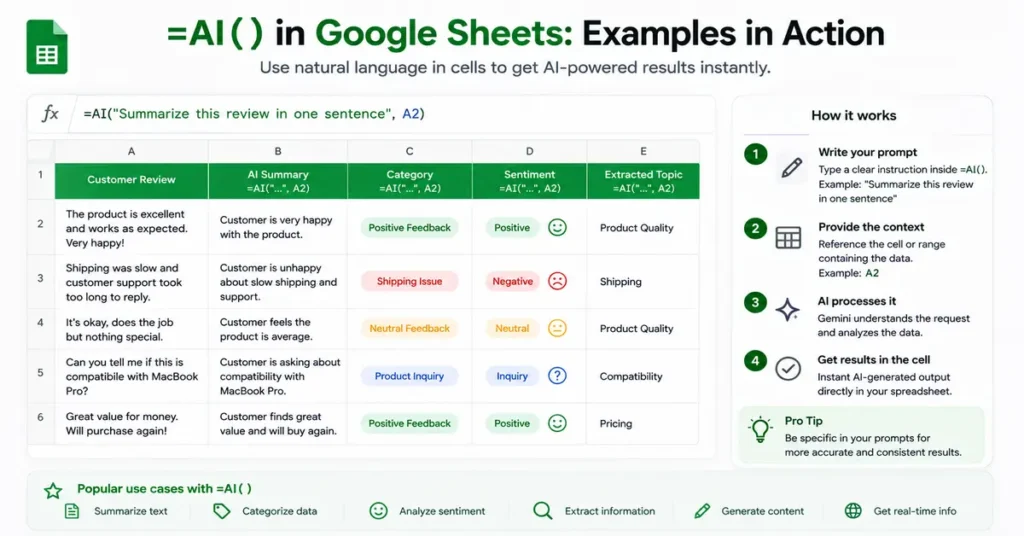
Use it when the task involves language or interpretation.
Good examples
Customer feedback → sentiment
Review → summary
Product text → category
Description → extracted company name
Message → intent
Product information → short description
These are exactly the types of tasks where AI can save substantial manual work.
When Should You NOT Use =AI()?
If a normal formula can solve the problem cleanly, use the normal formula.
Example
Need to calculate:
Total revenue
Use:
=SUM(D2:D500)
Need:
Count orders
Use:
=COUNT(A2:A500)
Need:
Find a matching customer
Use an appropriate lookup function.
Need:
Filter rows
Use FILTER.
The goal isn’t to replace every spreadsheet function with AI.
The goal is to use AI where traditional spreadsheet logic is not the best tool for the job.
7 Common Mistakes With the Google Sheets AI Function
Mistake 1: Using vague prompts
Bad:
=AI("Analyze", A2)
Better:
=AI("Classify this review as Positive, Negative, or Neutral. Return only one label.", A2)
Mistake 2: Not giving enough context
If AI doesn’t know what a column means, it may have to guess.
Give it the relevant range and explain the desired result.
Mistake 3: Expecting deterministic output
AI-generated text can vary.
If consistency matters, define the allowed outputs precisely.
Mistake 4: Using AI for simple calculations
Don’t use AI when SUM, COUNT, AVERAGE, FILTER or another standard function already solves the problem.
Mistake 5: Assuming AI sees every sheet
It doesn’t automatically have access to your entire spreadsheet or other Drive files through the AI function.
Mistake 6: Ignoring generation limits
The current documented batch limit is 350 selected AI-function cells at a time.
Mistake 7: Trusting every generated answer
Always verify important results.
A Practical Workflow for Using =AI()
Here’s the approach I’d recommend:
Step 1 — Clean your data
Remove obvious duplicates and formatting problems.
Step 2 — Define the task
Decide exactly what the AI should produce.
Step 3 — Define the output
Specify categories, length, format or allowed values.
Step 4 — Give the relevant range
Don’t make AI guess what data it should use.
Step 5 — Test a few rows
Run the function on a small sample first.
Step 6 — Check consistency
Look for incorrect classifications or unexpected responses.
Step 7 — Fill the larger range
Once you’re satisfied with the prompt.
Step 8 — Review the results
Especially before using them for business decisions.
This is much safer than immediately filling thousands of cells.
=AI() Prompt Cheat Sheet
| Task | Example |
|---|---|
| Summarize | =AI("Summarize this text in 20 words", A2) |
| Categorize | =AI("Classify this as Sales, Support, or Other. Return only one category.", A2) |
| Sentiment | =AI("Classify this review as Positive, Negative, or Neutral", A2) |
| Extract | =AI("Extract the company name. Return only the name.", A2) |
| Generate | =AI("Write a short product description", A2) |
| Compare | =AI("Compare the information in these cells and summarize the difference", A2:D2) |
| Current info | =AI("What is the current capital of Kazakhstan?") |
These examples are consistent with the types of AI-function tasks Google currently documents.
The Bottom Line
The Google Sheets AI function is most useful when your spreadsheet contains information that requires language understanding rather than simple mathematics.
Use =AI() to summarize, categorize, classify, extract or generate text directly inside cells. Use the optional range argument to give Gemini the context it needs. Google also supports =Gemini() as an equivalent function name.
For broader spreadsheet work—such as creating tables, analyzing trends, building charts, creating formulas or modifying the sheet—the Gemini side panel can be a better choice.
And don’t overlook the limitations.
The AI function doesn’t automatically understand your entire spreadsheet, has generation limits, produces text, and can return inaccurate results. Google currently limits batch generation to the first 350 selected AI-function cells at a time.
The simplest rule is:
Use normal spreadsheet formulas for deterministic calculations. Use
=AI()when the task requires language, classification, summarization, extraction or interpretation.
That is where the feature provides real value instead of adding AI where you don’t need it.
Frequently Asked Questions
What is the AI function in Google Sheets?
The AI function is a Gemini-powered Google Sheets function that can generate text, summarize information, categorize data, analyze sentiment and access current information from Google Search for supported requests.
How do I use =AI() in Google Sheets?
Enter =AI("your prompt", optional_range) into a cell. For example:
=AI("Summarize this customer review", A2)
You can also use =Gemini() for the same AI function.
Is =AI() available to everyone?
No. Google says the feature requires an eligible Google Workspace or Google AI plan, and availability can also depend on administrator and language settings.
What can I use =AI() for?
You can use it for text generation, summarization, categorization, sentiment analysis and certain requests that retrieve current information from Google Search.
Can =AI() summarize a Google Sheets cell?
Yes. For example:
=AI("Summarize this text in one sentence", A2)
The referenced cell provides the context for the prompt.
Can =AI() classify data?
Yes. You can give it a fixed set of categories and ask it to return one category for each row.
Can =AI() analyze my whole spreadsheet?
Not automatically. Google says the AI function doesn’t have access to your entire spreadsheet or other Drive files by default. Use the range argument to provide the relevant context. For broader spreadsheet analysis, the Gemini side panel may be more appropriate.
What is the difference between =AI() and Gemini in Google Sheets?
=AI() is designed for AI-generated results in spreadsheet cells. Gemini in the side panel provides broader assistance, including analysis, charts, formulas, formatting and spreadsheet actions.
Can I use =AI() for calculations?
You can ask it to perform some calculations, but standard Google Sheets formulas are generally preferable for deterministic mathematical operations. Use SUM, AVERAGE, COUNT, FILTER, XLOOKUP and other normal functions when they solve the problem reliably.
What is the current =AI() cell limit?
Google currently says that when multiple cells with AI functions are selected, only the first 350 selected cells are generated in one batch. You can generate additional cells afterward.
Why does Google Sheets say “AI function not available”?
Possible reasons include an ineligible account or plan, administrator settings, language settings, or feature availability. Google lists these conditions in its current AI-function documentation.
Can I use =AI() with sensitive business data?
Review your organization’s Google Workspace settings and applicable data-handling policies before using AI with confidential information. For third-party add-ons, check their individual permissions and privacy policies as well.
Google’s official documentation explains how the =AI() and =Gemini() functions work in Sheets, including supported tasks, syntax, and current limitations. You can check the official guide for the latest details and availability.
1 thought on “How to Use the AI Function in Google Sheets: =AI() Guide (2026)”