How to Deduplicate Google Sheets With AI Without Deleting Good Data (2026)
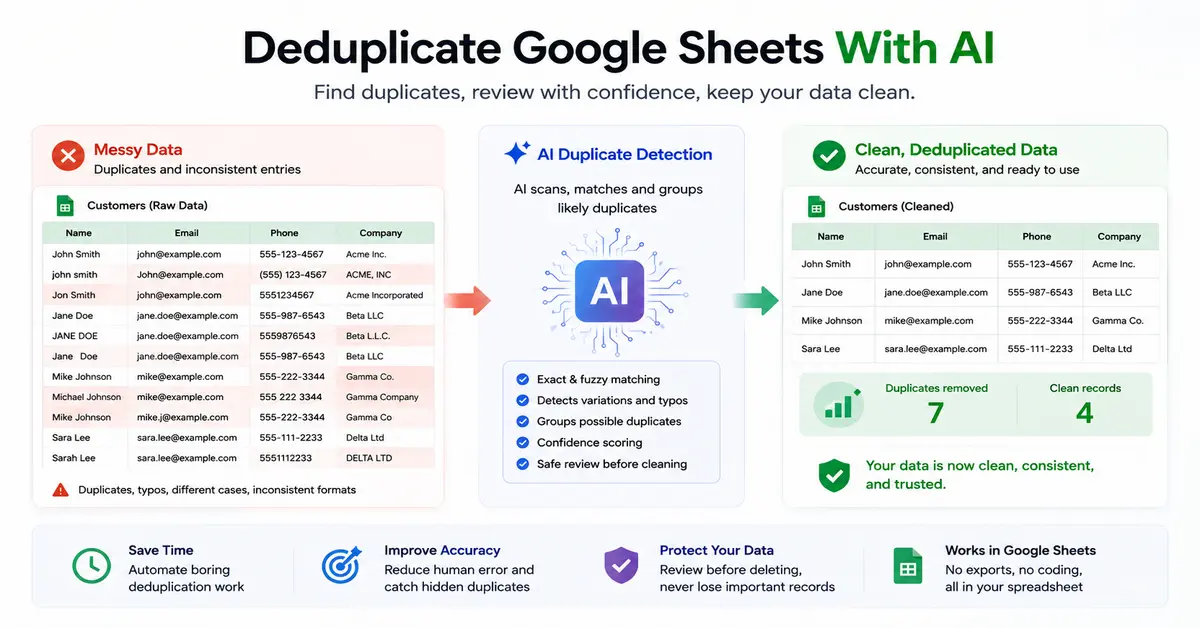
Yes, you can use AI to find and deduplicate Google Sheets data, including duplicates that are not exactly identical. But you should not let AI blindly delete rows. The safest approach is to define what counts as a duplicate, create a backup, let AI flag exact and likely matches, review them, and only then remove or merge the records.
Google Sheets already has a built-in Remove duplicates feature, so you do not need AI for simple exact duplicates. AI becomes more useful when names, companies, emails, addresses, or other records are similar but not identical.
What Does “Duplicate” Actually Mean in Google Sheets?
Before using AI, decide what a duplicate means for your particular spreadsheet.
This sounds obvious, but it is where many cleanup jobs go wrong.
Consider these records:
| Name | Company | |
|---|---|---|
| John Smith | [email protected] | Acme Inc. |
| John Smith | [email protected] | Acme Inc. |
| John Smith | [email protected] | Acme Inc. |
The first two rows may be duplicates.
The third row might be the same person—or it might be a different email address belonging to the same person.
Now consider:
| Customer | Invoice | Amount |
|---|---|---|
| John Smith | INV-1001 | $500 |
| John Smith | INV-1002 | $750 |
These rows look similar, but they are not necessarily duplicates. They may represent two legitimate invoices.
That is why good deduplication starts with a rule:
A duplicate is not simply a row that looks similar. It is a record that represents the same underlying entity or transaction according to your business rule.
Read More: AI Formula Generator for Google Sheets
Do You Need AI to Remove Duplicates in Google Sheets?
Not always.
For straightforward exact duplicates, Google Sheets already provides a native solution.
Select your data and go to:
Data → Data cleanup → Remove duplicates
Google lets you specify whether the dataset has headers and which columns should be used to determine duplicates.
Google’s Smart Cleanup features can also surface cleanup suggestions, including duplicates, extra spaces, inconsistent formatting, and anomalies.
So if your spreadsheet contains rows that are literally identical, using AI may add unnecessary complexity.
Use AI when the problem is harder
AI becomes more useful when you have records such as:
Acme IncACME, INC.Acme CorporationACME INC
or:
John Smithjohn smithJohn A. Smith
or:
555-123-4567(555) 123-45675551234567
Traditional exact matching may treat these as different values.
AI-assisted or fuzzy matching tools can help identify records that are probably related even when their text isn’t identical. GPT for Work, Flookup and SheetSteps currently advertise workflows for this kind of spreadsheet cleanup.
The Safest Way to Deduplicate Google Sheets With AI
Don’t use this workflow:
AI → Delete duplicates
Use this instead:
Backup → Define → Normalize → Detect → Review → Merge/Delete → Verify
That extra review stage is what protects your original data.
Step 1: Make a Copy of the Original Data
Before deleting anything, duplicate the original sheet or work in a separate tab.
This matters because Google’s built-in Remove duplicates feature changes the selected source range.
For important business data, keep:
Raw Data
and create:
Cleaned Data
as a separate working area.
That gives you something to compare against if the cleanup produces an unexpected result.
Step 2: Decide What Identifies a Duplicate
This is more important than choosing an AI tool.
For a contact list, the strongest identifier might be:
Email address
For an invoice sheet:
Invoice number
For a product catalog:
SKU
For a customer database:
Customer ID
For imported lead data, you may need a combination such as:
Email + company
or:
Name + company + phone
Don’t simply tell AI:
“Remove all duplicate rows.”
Tell it what constitutes a duplicate.
For example:
“Treat two rows as duplicates when the email address is the same, ignoring capitalization and surrounding spaces. Keep the row with the most recent updated date.”
That is a much safer instruction.
Step 3: Clean the Data Before Matching
Sometimes the duplicate problem isn’t actually a duplicate problem.
It is a formatting problem.
For example:
Acme Inc
ACME INC.
Acme, Inc.
may represent the same company.
Likewise:
[email protected]
[email protected]
should normally be treated as the same email address even though the capitalization differs.
Before matching, look for:
- Extra spaces
- Different capitalization
- Punctuation differences
- Different phone formats
- Abbreviations
- Missing values
- Typographical errors
- Inconsistent country/state names
Google’s Smart Cleanup features are designed to help identify issues such as extra spaces, duplicates and inconsistent data before analysis.
AI-powered data-cleaning tools can also normalize names, phone formats and other fields before deduplication.
Step 4: Find Exact Duplicates First
Don’t jump directly to fuzzy AI matching.
Start with the easy cases.
If two rows are identical across the columns that matter, they are much easier to classify.
Google Sheets’ native Remove duplicates tool is enough for many of these situations.
You can also create a non-destructive unique view with the UNIQUE function.
For example:
=UNIQUE(A2:D1000)
This produces a unique set of rows without directly deleting the source data.
For a simple list:
=UNIQUE(A2:A1000)
can return unique values from one column.
Why this matters
If you are still deciding what should be removed, a separate unique view is safer than immediately modifying your source dataset.
Step 5: Use AI for Fuzzy Duplicates
This is where AI becomes more useful.
Imagine your company column contains:
International Business Machines
IBM
IBM Corp.
I.B.M.
IBM Corporation
A simple exact-match rule will not treat these as identical.
AI-assisted fuzzy matching can identify that these records may refer to the same organization.
GPT for Work describes AI deduplication as identifying near-duplicate records even when entries are spelled differently, while Flookup offers fuzzy matching based on similarity and other matching methods.
But there is a critical distinction:
A fuzzy match is a candidate duplicate, not automatically a confirmed duplicate.
That distinction should remain in your workflow.
Read More: How to Analyze Google Sheets Data With AI
Exact Duplicate vs Fuzzy Duplicate
| Type | Example | Confidence |
|---|---|---|
| Exact | [email protected] / [email protected] | High |
| Case difference | John Smith / john smith | Usually high |
| Formatting difference | Acme Inc. / ACME INC | Often high |
| Minor typo | Jon Smith / John Smith | Medium |
| Similar company | Acme Corp / Acme Consulting | Uncertain |
| Same person, different transaction | Same customer / different invoice | Not a duplicate |
The farther you move from exact matching, the more important human review becomes.
How to Use AI Without Letting It Delete Good Data
A safer AI prompt looks like this:
“Review this Google Sheets contact list for exact and likely duplicate records. Use email as the strongest identifier. Also flag records with very similar names and companies, but do not delete anything. Return three categories: confirmed duplicates, likely duplicates for review, and unique records.”
That’s much safer than:
“Delete duplicates.”
Why?
Because the first prompt separates detection from destruction.
You can review the suggestions before changing the source.
A Better AI Deduplication Workflow
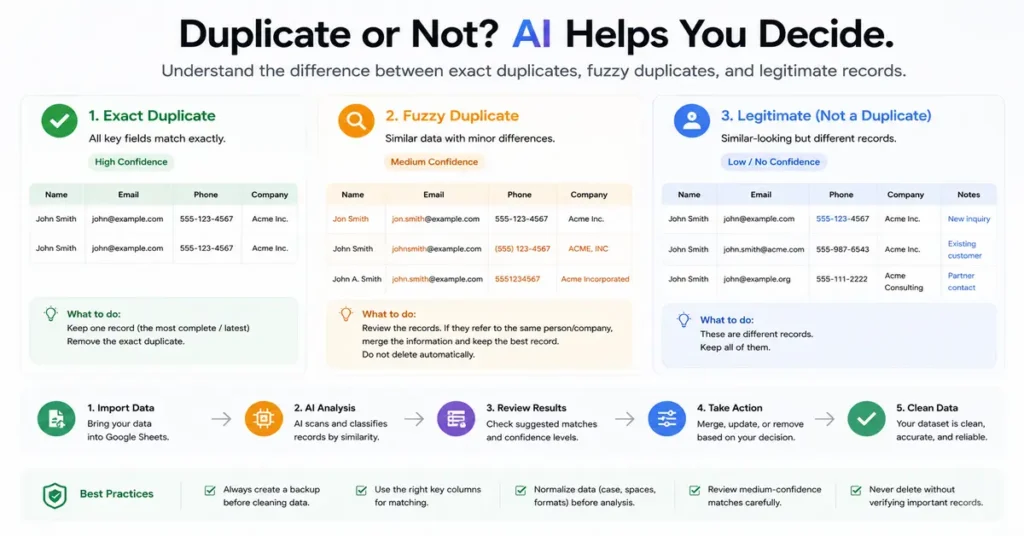
For a larger dataset, use this process:
1. Protect
Duplicate the original tab.
2. Define
Decide what makes two records the same.
3. Normalize
Standardize names, emails, phone numbers and other fields.
4. Detect
Find exact matches first.
5. Fuzzy-match
Use AI or similarity matching for likely duplicates.
6. Review
Inspect ambiguous groups.
7. Decide
Choose which record should survive.
8. Merge
Move useful information into the retained record when necessary.
9. Delete
Remove confirmed duplicates only.
10. Validate
Compare the cleaned dataset with the original.
This is more work than clicking Remove duplicates, but it is far safer for valuable datasets.
How to Decide Which Duplicate Row to Keep
Finding duplicates is only half the problem.
Suppose you have:
| Name | Phone | Updated | |
|---|---|---|---|
| Sarah Jones | [email protected] | 555-1000 | Jan 5 |
| Sarah Jones | [email protected] | 555-2000 | Mar 10 |
Which row should survive?
You shouldn’t automatically keep the first row.
Maybe the second row has the latest phone number.
A better rule could be:
Keep the most recently updated record, but preserve non-empty information from the older record where appropriate.
Some deduplication tools provide controls over which occurrence to keep or allow similarity thresholds to be adjusted. Flookup, for example, documents similarity scoring and controls for occurrences in its matching workflow.
Read More: AI Function in Google Sheets
Google Sheets vs AI: Which Method Should You Use?
You don’t need AI for every cleanup job.
Use Google Sheets’ built-in tool when:
- Rows are exact duplicates
- You know which columns define a duplicate
- The dataset is relatively clean
- You are comfortable reviewing the result
Google’s native Remove duplicates feature is fast and requires no third-party add-on.
Use formulas when:
- You want a non-destructive workflow
- You want to flag duplicates first
- You need repeatable spreadsheet logic
- You want the original data untouched
Use AI when:
- Names are inconsistent
- Companies have multiple spellings
- Data comes from several sources
- You need natural-language instructions
- You need fuzzy matching
- You have large repetitive cleanup tasks
Use specialized fuzzy-matching tools when:
- The dataset is large
- Near-duplicates are common
- You need similarity scores
- You need a reviewable matching process
Flookup and similar tools specifically target fuzzy matching and deduplication in Google Sheets.
AI Tools That Can Help Deduplicate Google Sheets
The right tool depends on how complicated your data is.
Flookup Data Wrangler
Flookup’s current Google Workspace Marketplace listing says it supports fuzzy matching and removing duplicates despite differences in typos, capitalization and punctuation. It also provides similarity scoring and adjustable matching thresholds.
Best for: Fuzzy matching and more advanced record matching.
SheetSteps AI
SheetSteps describes a workflow that can normalize data, remove duplicates, group repeated records for review and preview changes before writing them to the sheet.
Best for: Users who want a preview-first data-cleaning workflow.
GPT for Work
GPT for Work currently positions its spreadsheet AI around cleaning, deduplication, normalization and large-scale row processing. Its product documentation says it can work across Excel and Google Sheets.
Best for: Large-scale spreadsheet automation and broader AI data-cleaning tasks.
Prompt2Sheets
Prompt2Sheets supports natural-language spreadsheet operations, including deduplication by email, URL or another selected column. It also offers cleanup and formatting operations through prompts.
Best for: Simple prompt-based spreadsheet cleanup.
SheetNova AI
SheetNova AI is a Google Sheets add-on that includes data cleaning, analysis, automation and a Remove Duplicates feature according to its current Google Workspace Marketplace listing.
Best for: Users looking for a broader Sheets productivity add-on rather than a dedicated fuzzy-matching tool.
What About Google’s Built-In AI?
This is worth mentioning because you may not need a third-party tool.
Google Sheets now has Smart Cleanup features for identifying duplicates and other common data-quality problems.
Google also supports using Gemini within Sheets for tasks such as creating formulas and working with spreadsheet data.
For straightforward duplicate cleanup, start with what Google already provides before installing another extension.
That’s especially important if the only problem is:
“I accidentally imported the same row twice.”
You don’t need an AI data platform for that.
What AI Should Not Do Automatically
Be careful when your data contains:
- Financial transactions
- Customer histories
- Medical or sensitive records
- Employee information
- Multiple invoices per customer
- Multiple orders per customer
- Different contacts at the same company
- Historical records
For example:
John Smith | Invoice 1001 | $500
John Smith | Invoice 1002 | $750
These are not duplicates just because the customer name is identical.
Similarly:
Acme Inc | John
Acme Inc | Sarah
could represent two legitimate contacts at the same company.
Similarity is not proof.
Read More: Google Sheets AI Data Cleaning
How to Verify Your Spreadsheet After Deduplication
Don’t stop when the duplicate count looks reasonable.
Check the cleaned dataset against the original.
Compare row counts
If you started with 10,000 rows and ended with 7,000, make sure the 3,000 removed rows were actually duplicates.
Compare important totals
If the spreadsheet contains revenue, expenses or quantities, compare totals before and after.
A sudden change can indicate that legitimate rows were removed.
Check known records
Pick several customers, products or transactions you already understand.
Make sure they still exist and contain the information you expect.
Check the duplicate groups
Especially review fuzzy matches.
This is where false positives are most likely.
Common Google Sheets Deduplication Mistakes
Mistake 1: Matching on the wrong column
If you deduplicate an entire customer table using only the customer name, you may remove legitimate records.
Fix: Decide what actually identifies the entity.
Mistake 2: Deleting before reviewing
Once rows are removed, recovering the correct information can become difficult.
Fix: Flag first, delete later.
Mistake 3: Treating similar names as identical
ABC Construction and ABC Construction LLC may or may not be the same entity.
Fix: Use additional fields such as email, domain, address or customer ID.
Mistake 4: Ignoring capitalization and formatting
ACME INC and Acme Inc. may be the same company.
Fix: Normalize before matching.
Mistake 5: Assuming AI is always right
AI can identify patterns, but your business rules determine whether those patterns represent duplicates.
Fix: Keep a human review step for ambiguous matches.
The Best Prompt for AI Deduplication
If you are using a general AI assistant, try something like:
“Analyze this Google Sheets dataset for duplicate records. First identify the columns that are most useful for matching. Treat identical email addresses as confirmed duplicates. For names and company names, identify likely fuzzy matches but do not delete them. Create a review table showing the original rows, the reason they were matched, and a confidence level. Do not modify the source data.”
This is much better than asking AI to simply:
“Clean this spreadsheet.”
You are telling it:
- What to inspect
- What counts as confirmed
- What counts as uncertain
- What output you want
- What it must not do
That reduces the chance of destructive mistakes.
Can AI Deduplicate Thousands of Rows?
Yes, AI spreadsheet tools are increasingly designed for large-scale cleanup.
GPT for Work, for example, advertises bulk row-by-row processing at scale, while SheetSteps describes batch processing with previews and row status.
But more rows does not automatically mean AI is the right answer.
If your 50,000-row spreadsheet has a reliable customer ID column, a deterministic matching rule may be safer and easier to audit than an AI workflow.
Use AI where it solves a genuine ambiguity or repetitive data-cleaning problem.
Deduplicate Google Sheets With AI
The safest way to deduplicate Google Sheets with AI is not to let AI delete everything it considers similar.
Start with Google’s built-in duplicate removal for exact matches. Use formulas or a separate review view when you want a non-destructive approach. Bring in AI or fuzzy matching when records are similar but not identical—such as company names, addresses, phone numbers or misspelled names.
Most importantly, separate finding duplicates from deleting duplicates.
Your ideal workflow is:
Protect → Define → Normalize → Detect → Review → Merge/Delete → Verify
If you’re cleaning a simple spreadsheet, you may not need an AI tool at all. If you’re dealing with thousands of messy records from multiple sources, AI-assisted deduplication can save significant manual work—but the final decision about ambiguous records should still be yours.
FAQ On Deduplicate Google Sheets With AI
Can AI remove duplicates in Google Sheets?
Yes. AI-powered spreadsheet tools can identify exact and near-duplicate records and, depending on the tool, remove or group them. Google Sheets itself also has a native Remove duplicates feature for exact matching.
What is the safest way to remove duplicates in Google Sheets?
Make a copy first, define what counts as a duplicate, identify the records, review them, and then remove confirmed duplicates. Avoid deleting fuzzy matches automatically.
Does Google Sheets have a built-in duplicate remover?
Yes. Go to Data → Data cleanup → Remove duplicates, select the columns that define a duplicate, and run the cleanup.
Can AI find duplicates with different spellings?
Yes. AI and fuzzy-matching tools can identify records that are similar even when the text isn’t identical. Flookup and GPT for Work are examples of tools that currently advertise this capability.
What is the difference between exact and fuzzy duplicates?
An exact duplicate matches according to the selected values. A fuzzy duplicate is similar but may contain differences in spelling, punctuation, formatting or wording.
Should I delete fuzzy matches automatically?
No, not in important data. A fuzzy match is a candidate for review, not proof that two records are the same.
Can I deduplicate Google Sheets without deleting the original data?
Yes. You can work on a copy, create a separate unique view with UNIQUE, or use tools that preview changes before applying them. SheetSteps, for example, describes previewing transformations before writing changes.
What should I use as the duplicate key?
Use the most reliable identifier available. For contacts, that might be an email or customer ID. For invoices, an invoice number may be better. For products, SKU is often more useful than product name.
Is AI necessary for simple duplicate rows?
No. If the rows are exact duplicates, Google Sheets’ built-in Remove duplicates feature is usually the simpler solution.
Can AI accidentally delete good data?
Yes, if you give it an overly broad instruction or allow uncertain matches to be deleted automatically. That’s why backups, explicit matching rules and human review matter.
If you only need to remove exact duplicate rows, Google Sheets already has a built-in Remove duplicates feature under Data → Data cleanup. You can also use Google’s Smart Cleanup tools to identify duplicates and other common data-quality issues. Google Sheets’ official guide to removing duplicates
4 thoughts on “How to Deduplicate Google Sheets With AI Without Deleting Good Data (2026)”